
One of the most common reasons behind stuttering can be an underpowered CPU or GPU. But if you think your computer has more than needed requirements to play League of Legends, then the stuttering could be due to other reasons as well. In this article, we’ll try to fix the stuttering problem in League of Legends in the simplest way possible.
Reasons Triggering the Stuttering Issue in League of Legends
Let’s get straight to the business, the main culprits behind lagging in League of Legends could be the latest Windows 10 updates, outdated GPU drivers, or Windows 10 Game Mode. Yes, it may sound a bit weird but most gamers on different forums like Reddit and Tomshardware have reported the same scenario.
So, you have to work your way down the ladder to find out the real issue that is disturbing your gameplay.
Working Solutions to Troubleshoot Stuttering Problem in League of Legends
Try to go through these solutions one by one to solve the problem.
1- Updating GPU Drivers
If you are using an older graphics card and haven’t updated its driver since you bought it, then you could come up with lags and stuttering while gameplay. Updating the drivers of your graphics card is fairly simple.
- If you are using an Nvidia graphics card, then simply head over to the official website of Nvidia here and search for the model of your graphics card. Download and install the drivers, and then restart your computer for the changes to take place effectively.
- The same goes for the AMD graphics cards, visit the official website of AMD and type your GPU model. Download the drivers and install them. Don’t forget to restart your computers for the new changes to take place.
2- Disabling Game Mode
Windows 10 has a special feature called “Game Mode” which you can turn on while playing your favourite games. Some graphics cards from Nvidia and AMD cause frequent lags and freezes in League of Legends while the Windows 10 Game Mode is turned on.
But disabling the Game Mode fixes the stuttering issue in League of Legends.
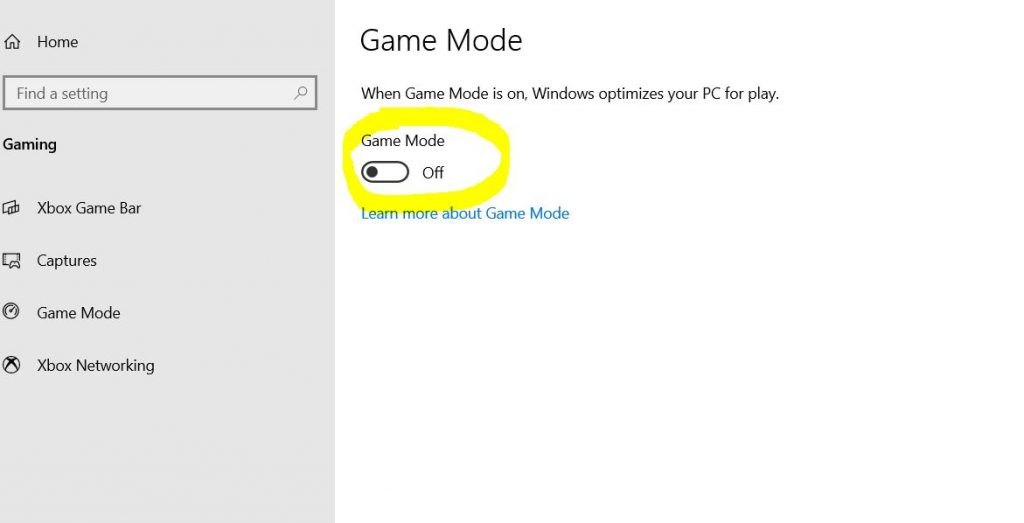
All you need to do is to head over to the “Windows Search Bar” at the bottom left corner of your screen and type “Gaming Mode“, now click on it and just turn off the “Game Mode“. It’s that simple. See the image below to better understand this.
Restart your computer and run the game to see if the problem is gone. If the problem still persists, it’s time to move on to the next solution.
3- Uninstalling the Windows 10 Updates
You can reduce stutter in League of Legends by removing all the latest updates (in case the stuttering happened after installing updates). Some gamers have also reported the stuttering issue in League of Legends after the Creators Update. So, try to remove any updates and see if the game works fine with this.
You can simply head over to the Control Panel or Type “Windows Update” in the Windows Search Bar to directly head over to the Windows Update page to uninstall the latest updates.
4- Turning On V-Sync
This is the most effective solution to fix the lagging issue in League of Legends. If you have an Nvidia graphics card installed on your computer, then simply right click on the desktop and select “NVIDIA Control Panel”
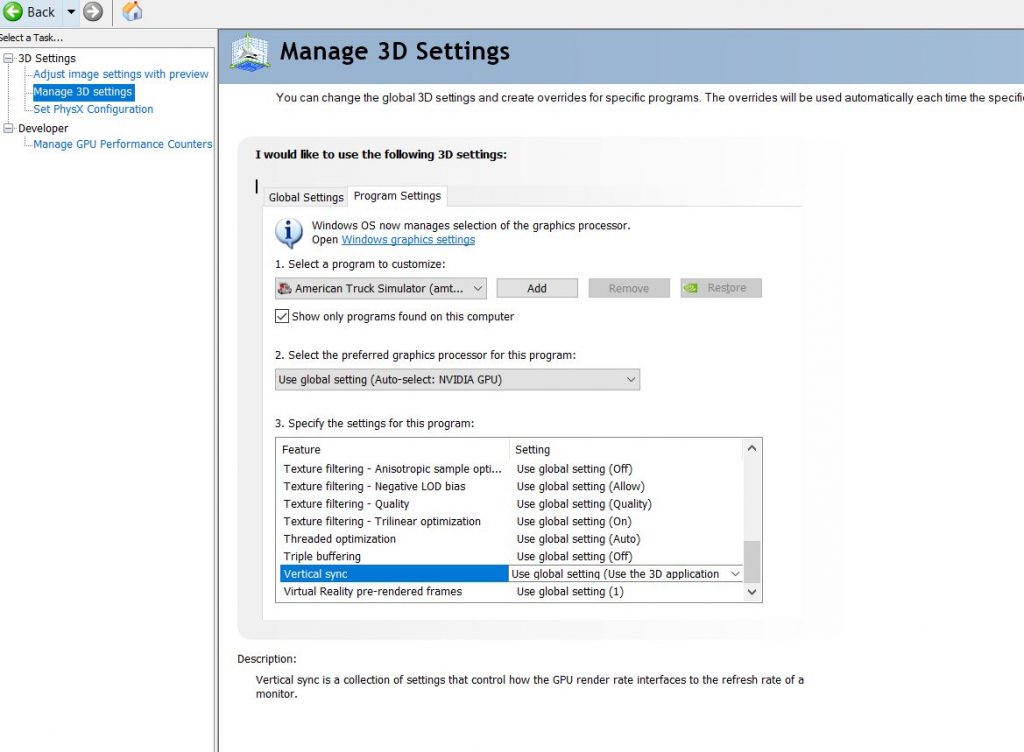
On the top left menu, you’ll see the “Manage 3D Settings” click on that option and you’ll see a panel on the right side of the screen as shown in the image below. Search for V-Sync in the list and set it “On“.
For AMD cards, again right-click on the desktop and select the AMD Radeon Settings. Now head over to “Global Settings” and then select the “Wait for Vertical Refresh” option. Within this, choose the “Enhance Sync” option and then restart your computer.
5- Adjust In-Game Settings
Sometimes, poorly optimized in-game video settings can cause stuttering in gameplay. Within the “Video Settings“, click on “Increased Performance” and it would set all the quality settings to low.
Another thing to consider at this point is the “Frame Rate Cap” found under Advanced Settings. Adjust this option to 60Fps or 120fps depending upon the refresh rate of your monitor or the specs of your gaming rig.
If you are using an entry-level GPU, then it’s worth disabling “Anti-Aliasing” as it would cause your graphics card to work more causing lags and stuttering in your gameplay.
Some Other Fixes
- Close background applications that use a lot of ram, i-e Google Chrome. Go to “Task Manager” and click on the “Processes” tab to see which application is using the most memory, select that application and click on “End Task” at the bottom.
- Sometimes, a poor internet connection could be the real culprit behind the lagging and stuttering in League of Legends. Make sure your internet connection is stable and faster in order to avoid any delay in gameplay.
Bottom Line:
Finally, we hope these solutions will help you fix the stuttering problem in League of Legends. These are the quickest fixes that you can follow to reduce lags and freezes in your gameplay. If these solutions don’t work as expected, then there might be an issue with your hardware like CPU or GPU.
Sometimes an overheated graphics card or CPU can result in lower performance. Make sure there are no heat management issues with your hardware. You can install third-party applications like CPU-Z, GPU-Z, or HWMonitor to track down the temperature of your CPU or GPU.
FAQs
Does VSync cause stuttering in League of Legends?
Yes, this could happen if the Vsync is turned on and the average frame rate drops below the refresh rate of your display. This can cause horizontal tears on your screen and may also end up in lags or stuttering during gameplay.
Why is LoL wild rift laggy?
There could be several reasons behind these lags in the LoL Wild Rift version. It could be due to outdated GPU drivers, newly installed updates, Windows 10 Game Mode, or poorly optimized in-game settings as well.